Month: October 2011

  • Unveiling the Features of Windows 7

    Unveiling the Features of Windows 7

    Unveiling the Features of Windows 7
    Unveiling the Features of Windows 7

    Unveiling the Features of Windows 7: A Deep Dive into Microsoft’s Beloved Operating System

    Introduction

    Released by Microsoft in October 2009, Unveiling the Features of Windows 7  remains one of the most celebrated operating systems in the history of personal computing. Building on the foundation laid by its predecessor, Windows Vista, Windows 7 introduced a range of enhancements and new features that captivated users and earned it widespread acclaim. This comprehensive article explores the key features of Windows 7, highlighting how they contributed to its success and made it a favorite among both casual users and professionals.

    1. Streamlined User Interface

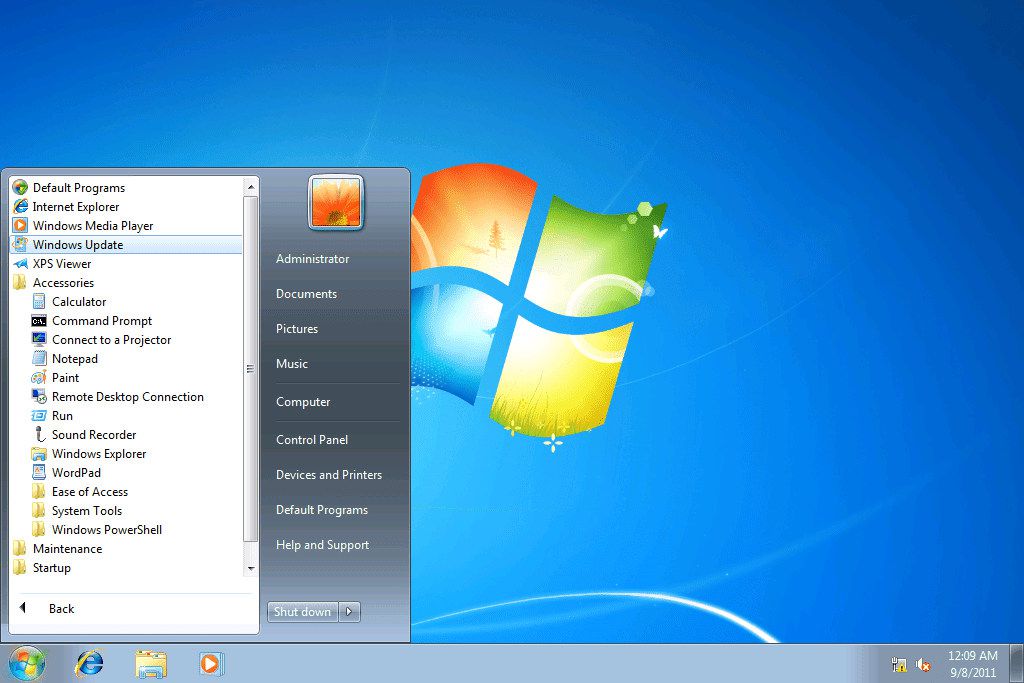
    1. Taskbar Improvements: One of the most significant changes in Windows 7 was the redesign of the taskbar. Unlike previous versions, the Windows 7 taskbar, often referred to as the “Superbar,” featured larger icons and a more streamlined appearance. Users could pin frequently used applications to the taskbar for quick access and benefit from jump lists, which provided quick access to recent files and tasks related to the pinned applications.
    2. Aero Peek: Aero Peek was a new feature that allowed users to quickly view the desktop by hovering over the small rectangle at the far right of the taskbar. This functionality was particularly useful for previewing open windows and accessing desktop gadgets without minimizing all open applications.
    3. Aero Snap and Aero Shake: Aero Snap enabled users to quickly resize and arrange windows by dragging them to the edges of the screen. For example, dragging a window to the left or right edge of the screen would make it fill half of the display, while dragging it to the top edge would maximize it. Aero Shake allowed users to minimize all other open windows by clicking and shaking the title bar of the active window, making it easier to focus on a single task.

    2. Enhanced File Management

    1. Libraries: Windows 7 introduced the concept of Libraries, which provided a unified view of files and folders from various locations on a computer. Libraries such as Documents, Pictures, Music, and Videos allowed users to organize their files more effectively and access them from a central location.
    2. Improved Windows Search: The search functionality in Windows 7 was significantly improved, making it faster and more efficient. The search box in the Start menu and Explorer window offered real-time search results as users typed, helping them locate files, folders, and applications quickly.
    3. Folder Navigation: Windows 7 enhanced the folder navigation experience with features like breadcrumb navigation, which displayed the path to the current folder and allowed users to navigate back to previous levels with a single click. The new Libraries feature also made it easier to manage and access files across different locations.

    3. Enhanced Performance and Efficiency

    1. Faster Startup and Shutdown: Windows 7 offered improved performance over Windows Vista, including faster startup and shutdown times. These optimizations contributed to a more responsive and efficient computing experience.
    2. Reduced System Resource Usage: Windows 7 was designed to use system resources more efficiently, resulting in better performance on a wide range of hardware configurations. This optimization made it possible for users with older or less powerful computers to experience smoother and more reliable performance.
    3. Improved Power Management: The operating system included enhancements to power management, allowing users to manage their computer’s power settings more effectively. Features like improved sleep and hibernation modes contributed to longer battery life on laptops and reduced power consumption on desktop systems.

    4. User Account Control (UAC) Enhancements

    1. Less Intrusive UAC: Windows 7 improved the User Account Control (UAC) feature, which was introduced in Windows Vista to enhance security by prompting users for permission before allowing changes to system settings. In Windows 7, UAC prompts were less frequent and less intrusive, providing users with more control over their security settings without compromising usability.
    2. Customizable UAC Settings: Users had greater control over UAC settings in Windows 7, allowing them to adjust the level of notifications they received. This customization ensured that users could balance security with convenience according to their preferences.

    5. Improved Networking and Connectivity

    1. HomeGroup: Windows 7 introduced HomeGroup, a feature designed to simplify the process of sharing files and printers between computers on a local network. HomeGroup made it easier for users to set up and manage network connections, share media, and access shared resources across multiple devices.
    2. Improved Network Location Awareness: The operating system offered better network location awareness, automatically adjusting settings based on the type of network a computer was connected to (e.g., home, work, or public). This feature enhanced security and convenience by applying appropriate settings for each network environment.
    3. Wi-Fi and Device Compatibility: Windows 7 included support for a wide range of wireless devices and improved Wi-Fi connectivity. The operating system also featured better compatibility with various hardware components and peripherals, reducing the likelihood of driver-related issues.

    6. Enhanced Multimedia and Entertainment

    1. Windows Media Center: Windows 7 included Windows Media Center, which provided a comprehensive platform for managing and enjoying multimedia content. Users could watch and record TV shows, play music and videos, and view photos through an intuitive interface.
    2. DirectX 11: The operating system supported DirectX 11, a technology that enhanced gaming and multimedia experiences by providing better graphics performance and improved support for advanced visual effects.
    3. Improved Photo and Video Management: Windows 7 introduced enhancements to photo and video management, including improved tools for editing, organizing, and sharing media files. The operating system also included a redesigned Windows Photo Viewer for a more efficient and visually appealing experience.

    7. Security Enhancements

    1. BitLocker and BitLocker To Go: Windows 7 Professional and Ultimate editions included BitLocker, a disk encryption feature that helped protect data by encrypting the entire hard drive. BitLocker To Go extended this protection to removable drives, such as USB flash drives, ensuring that sensitive information remained secure.
    2. Windows Defender: The operating system included Windows Defender, a built-in anti-malware tool designed to protect against spyware and other malicious software. Windows Defender offered real-time protection and regular scans to help keep the system secure.
    3. Enhanced Firewall: Windows 7 featured an improved Windows Firewall with more granular control over network traffic. Users could configure advanced settings to control inbound and outbound connections, enhancing overall network security.

    8. Customization and Personalization

    1. Aero Themes: Windows 7 continued the Aero theme introduced in Windows Vista, offering users the ability to personalize the look and feel of their desktop with various themes, including different color schemes, wallpapers, and window styles.
    2. Gadgets: The operating system supported desktop gadgets, small applications that could be added to the desktop to display useful information such as weather, calendar events, and news headlines. While gadgets were popular for customization, they were later removed in Windows 8 due to security concerns.
    3. Desktop Background Slideshow: Windows 7 allowed users to set up a slideshow of desktop backgrounds, automatically cycling through a collection of images to keep the desktop visually interesting and dynamic.

    9. Improved Compatibility and Support

    1. Legacy Application Support: Windows 7 maintained compatibility with a wide range of legacy applications, making it easier for users to run older software programs without encountering compatibility issues.
    2. Driver Support: The operating system included extensive driver support for various hardware components, reducing the need for users to manually search for and install drivers. This compatibility contributed to a smoother setup process and improved hardware performance.
    3. Virtualization: Windows 7 Professional and Ultimate editions included support for virtualization technologies such as Windows XP Mode. This feature allowed users to run Windows XP applications within a virtual machine, providing compatibility for legacy software while using a modern operating system.

    Conclusion

    Windows 7 represents a significant milestone in the evolution of Microsoft’s operating systems. With its user-friendly interface, enhanced performance, and innovative features, Windows 7 earned widespread acclaim and remains a beloved operating system for many users. Its impact on the technology landscape is evident in the way it set new standards for usability, security, and multimedia capabilities.

    Although support for Windows 7 officially ended on January 14, 2020, its legacy continues to influence subsequent versions of Windows and remains a nostalgic favorite for those who experienced its advantages firsthand. The features introduced in Windows 7 paved the way for future advancements in computing, solidifying its place in the history of personal and professional technology.
  • The Story of Windows 7 A Comprehensive Overview and the End of Support

    The Story of Windows 7 A Comprehensive Overview and the End of Support

    The Story of Windows 7 A Comprehensive Overview and the End of Support

    Introduction

    The Story of Windows 7 A Comprehensive Overview and the End of Support Windows 7, released by Microsoft in October 2009, stands as one of the most beloved and successful operating systems in the history of personal computing. Its intuitive interface, reliable performance, and robust feature set garnered widespread acclaim from users and critics alike. However, all good things must come to an end, and Microsoft officially ended support for Windows 7 on January 14, 2020. This article explores the story behind Windows 7, its impact on the technology landscape, and the reasons behind Microsoft’s decision to discontinue support.

    Unveiling the Features of Windows 7

    The Genesis of Windows 7

    1. Background and Development: Windows 7 was conceived as the successor to Windows Vista, which faced criticism for its performance issues and compatibility problems. Microsoft aimed to address these concerns by developing an operating system that combined the best features of Vista with improved speed, stability, and usability. Development for Windows 7 began shortly after the release of Vista, with a focus on refining the user experience and enhancing system performance.
    2. Release and Reception: Windows 7 was officially launched on October 22, 2009. The release was met with enthusiastic reviews and consumer adoption, thanks to its user-friendly interface, performance improvements, and enhanced compatibility with hardware and software. Key features included the redesigned taskbar, improved window management with Aero Snap, and the introduction of features like libraries and enhanced search functionality.
    3. Key Features and Innovations:
      • Taskbar Improvements: The taskbar was redesigned to offer a more streamlined and efficient user experience. Users could pin applications for quick access, and the new jump lists provided quick access to recent files and tasks.
      • Aero Snap and Aero Peek: These features enhanced window management, allowing users to easily snap windows to the edges of the screen or preview open windows by hovering over the taskbar.
      • Libraries: Libraries provided a unified view of files and folders from different locations, making it easier to organize and access data.
      • Windows Search: Improved search functionality made it easier to find files and applications quickly.

    Impact and Popularity

    1. Consumer and Enterprise Adoption: Windows 7 quickly gained traction among both individual users and businesses. Its stability and performance improvements over Vista led to widespread adoption, making it a popular choice for personal computers and enterprise environments.
    2. Legacy and Influence: Windows 7 set a high standard for user experience and performance, influencing subsequent versions of Windows. Its success established Microsoft’s reputation for delivering reliable and user-friendly operating systems.
    3. Extended Support and Lifecycle: Windows 7 enjoyed a long lifecycle, with Microsoft offering mainstream support until January 13, 2015, and extended support until January 14, 2020. This extended support period allowed businesses and organizations to continue using Windows 7 while transitioning to newer versions of Windows.

    Why Microsoft Ended Support for Windows 7

    1. Evolving Technology Landscape: As technology advances, operating systems need to evolve to meet new requirements and take advantage of modern hardware capabilities. Windows 7, while still functional, was based on older technology and lacked support for newer features and advancements in security and performance.
    2. Security Risks: As an operating system ages, it becomes more vulnerable to security threats. Continued support for Windows 7 required ongoing updates and patches to address emerging security vulnerabilities. By ending support, Microsoft could focus its resources on maintaining and improving newer operating systems with up-to-date security features.
    3. Encouraging Upgrades: Ending support for Windows 7 was part of Microsoft’s strategy to encourage users and organizations to upgrade to newer versions of Windows, such as Windows 10 and Windows 11. Newer operating systems offer enhanced security, performance improvements, and support for modern hardware and software.
    4. Cost and Resource Allocation: Supporting an older operating system involves significant costs for development, testing, and support. By discontinuing support for Windows 7, Microsoft could allocate resources to developing and supporting newer technologies and platforms.

    Implications of the End of Support

    1. Security Risks for Users: After January 14, 2020, Windows 7 users no longer received security updates or patches from Microsoft. This left systems running Windows 7 exposed to potential security vulnerabilities and threats, making it increasingly risky to continue using the operating system.
    2. Impact on Businesses and Organizations: Many businesses and organizations relied on Windows 7 for their operations. The end of support required these entities to plan and execute migration strategies to newer operating systems to ensure continued security and support.
    3. Extended Security Updates: For businesses and organizations that required more time to transition, Microsoft offered Extended Security Updates (ESU) for a limited period. The ESU program provided critical security updates for Windows 7, but it came at an additional cost and was intended to be a temporary measure.
    4. User Transition to Newer Systems: The end of support prompted many users to upgrade to newer versions of Windows, such as Windows 10 and Windows 11. These newer operating systems offer enhanced features, improved security, and better compatibility with modern hardware and software.

    Legacy of Windows 7

    1. Enduring Popularity: Despite the end of official support, Windows 7 remains popular among some users due to its familiar interface and reliability. Many users continue to use Windows 7 in various capacities, although they face potential security risks without official support.
    2. Influence on Future Windows Versions: Windows 7’s design and features influenced the development of subsequent versions of Windows. Elements of its user interface and functionality can be seen in Windows 8, Windows 10, and Windows 11.
    3. Nostalgic Value: For many users, Windows 7 represents a significant era in computing history. Its user-friendly design and stable performance have left a lasting impression, making it a nostalgic favorite for those who experienced its heyday.

    Conclusion : The Story of Windows 7 A Comprehensive Overview and the End of Support

    Windows 7’s journey from its development to its eventual end of support is a testament to its impact on the world of computing. Launched as a successor to the criticized Windows Vista, Windows 7 set a new standard for user experience, performance, and reliability. Its widespread adoption and enduring popularity highlight its significance in the history of operating systems.

    Microsoft’s decision to end support for Windows 7 was driven by the need to focus on modern technologies, address security concerns, and encourage upgrades to newer operating systems. While the end of support marked the conclusion of a significant chapter, Windows 7’s legacy continues to influence the evolution of Windows and remains a cherished part of computing history

  • Mastering Corel VideoStudio Pro X4

    Mastering Corel VideoStudio Pro X4

    Mastering Corel VideoStudio Pro X4: The Ultimate Guide to Video Editing Excellence

    Introduction

    In this Mastering Corel VideoStudio Pro X4 and this CVPRO X4  is a powerful video editing software designed to cater to both amateur filmmakers and seasoned video editors. With a suite of advanced features and an intuitive interface, VideoStudio Pro X4 enables users to create stunning videos, add impressive effects, and produce professional-quality films. Whether you’re editing home videos, creating promotional content, or working on a cinematic project, VideoStudio Pro X4 offers the tools and flexibility you need to bring your vision to life. This comprehensive guide will explore the software’s key features, practical applications, and tips for getting the most out of Corel VideoStudio Pro X4.

    What is Corel VideoStudio Pro X4?

    Corel VideoStudio Pro X4 is a video editing software developed by Corel Corporation. Released as part of the VideoStudio series, this version offers a robust set of tools for video editing, including support for high-definition (HD) and standard definition (SD) video formats. VideoStudio Pro X4 is known for its user-friendly interface, powerful editing capabilities, and creative features that make it accessible to users of all skill levels.

    Key Features of Corel VideoStudio Pro X4

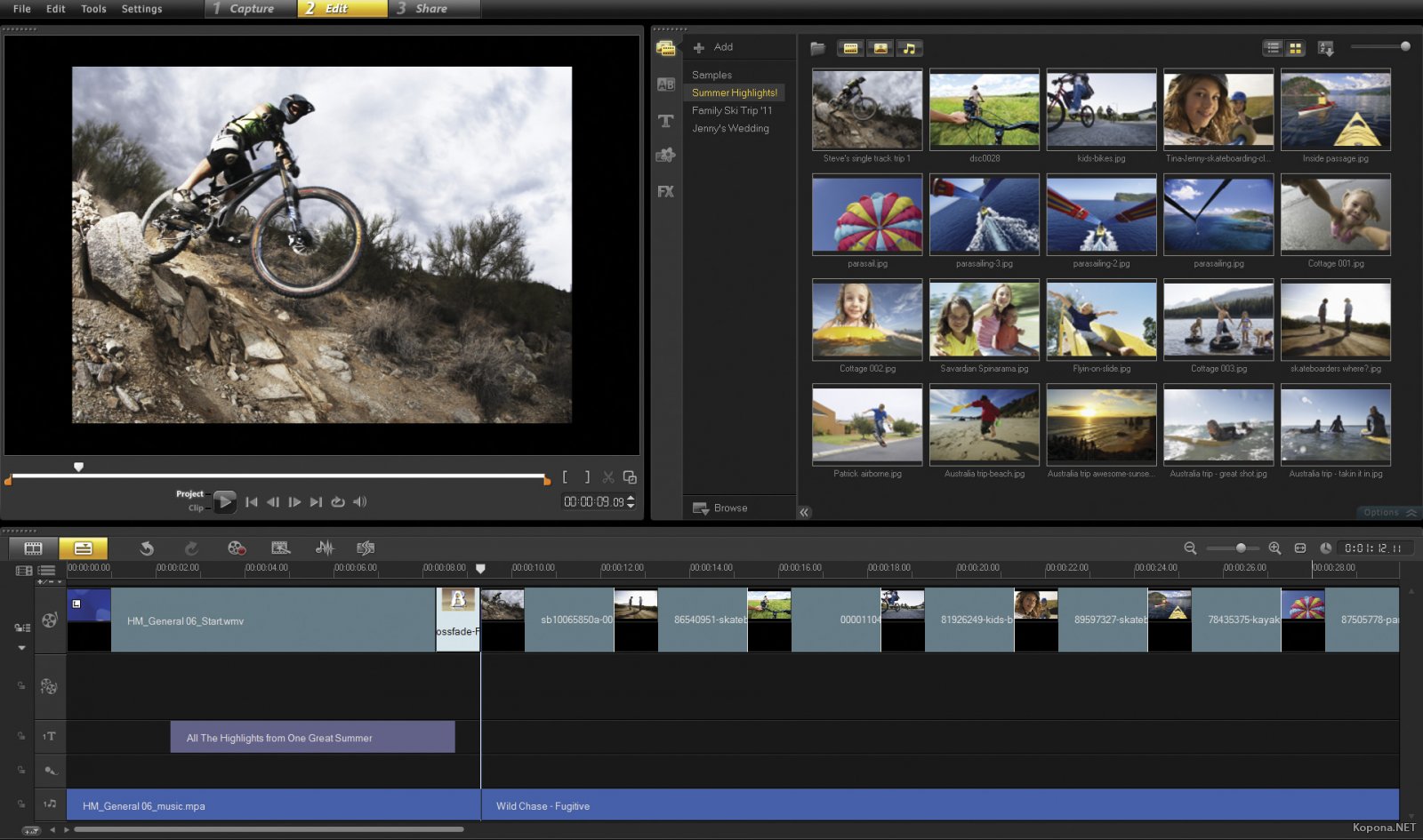
    1. Multi-Track Timeline Editing: VideoStudio Pro X4 features a multi-track timeline that allows for precise video and audio editing. Users can overlay multiple video and audio tracks, making it easier to combine clips, add effects, and synchronize sound.
    2. High-Definition Video Support: The software supports various HD video formats, including AVCHD and HDV. This capability ensures that you can work with high-quality video footage and produce output in stunning detail.
    3. Advanced Video Effects: Corel VideoStudio Pro X4 includes a wide range of video effects and transitions. From color corrections to special effects, users can enhance their videos with creative filters and transitions that add a professional touch.
    4. Chroma Key (Green Screen): The Chroma Key feature allows users to replace a solid-colored background with a different image or video. This effect is ideal for creating professional-looking composites and special effects.
    5. Motion Tracking: The motion tracking feature enables users to track moving objects within a video and apply effects or text that follows the object’s movement. This functionality adds a dynamic element to your videos.
    6. Easy-to-Use Templates: VideoStudio Pro X4 comes with a variety of pre-designed templates for video titles, transitions, and effects. These templates help users quickly create polished videos without needing extensive design skills.
    7. Audio Editing Tools: The software includes audio editing capabilities that allow users to adjust sound levels, add background music, and apply audio effects. This ensures that your videos not only look good but sound great too.
    8. DVD and Blu-ray Authoring: Corel VideoStudio Pro X4 provides tools for authoring DVDs and Blu-ray discs. Users can create custom menus, add chapters, and burn their edited videos to disc for distribution or archival purposes.
    9. User-Friendly Interface: The software features an intuitive interface that simplifies the video editing process. With easy access to essential tools and a streamlined workflow, users can quickly learn and efficiently use the software.

    Getting Started with Corel VideoStudio Pro X4

    To make the most of Corel VideoStudio Pro X4, follow these steps to get started:

    1. Installation and Setup: Download Corel VideoStudio Pro X4 from the official Corel website or an authorized distributor. Follow the installation prompts to set up the software on your computer. Once installed, launch VideoStudio Pro X4 and familiarize yourself with the workspace.
    2. Importing Media: Begin by importing your video clips, audio files, and images into VideoStudio Pro X4. Use the “Import” function to load your media files into the software. Organize your media into folders for easy access.
    3. Creating a New Project: Start a new project by selecting the “Create New Project” option. Set your project settings, including resolution and frame rate, to match your source footage and desired output.
    4. Editing Your Video: Use the multi-track timeline to arrange your video clips and audio tracks. Trim, split, and merge clips as needed. Apply transitions, effects, and text to enhance your video and create a polished final product.
    5. Adding Effects and Transitions: Explore the library of video effects and transitions available in VideoStudio Pro X4. Drag and drop effects onto your clips and adjust their settings to achieve the desired look. Use transitions to create smooth changes between scenes.
    6. Using Chroma Key: To use the Chroma Key feature, add a clip with a solid-colored background to your timeline. Apply the Chroma Key effect and select the background color to remove. Replace the background with a new image or video for a seamless composite.
    7. Motion Tracking: Add motion tracking to your video by selecting the “Motion Tracking” tool. Track a moving object within your clip and apply effects or text that follow the object’s movement.
    8. Adding Audio: Import audio files and add them to your project’s timeline. Use the audio editing tools to adjust volume levels, add fades, and synchronize audio with your video.
    9. Creating DVD/Blu-ray Discs: If you want to create a DVD or Blu-ray disc, use the built-in authoring tools to design custom menus, add chapters, and burn your video to disc. Follow the prompts to complete the authoring process.

    Tips and Techniques for Effective Use

    1. Organize Your Media: Keep your media files organized in folders and subfolders. This will make it easier to locate and manage your files as you work on your project.
    2. Use Keyboard Shortcuts: Learn and use keyboard shortcuts to speed up your editing process. Common shortcuts for functions like cutting, pasting, and undoing actions can save you valuable time.
    3. Save Your Work Frequently: Regularly save your project to prevent data loss. Use incremental saving to keep multiple versions of your project in case you need to revert to an earlier stage.
    4. Experiment with Effects: Don’t be afraid to experiment with different effects and transitions. Creative experimentation can lead to unique and visually engaging results.
    5. Utilize Templates: Take advantage of the pre-designed templates for titles, transitions, and effects. These templates can help you create professional-looking videos quickly and easily.
    6. Preview Your Edits: Use the preview function to review your edits before finalizing your project. This will help you catch any issues and make adjustments as needed.
    7. Explore Online Resources: Leverage online tutorials and forums to learn new techniques and troubleshoot issues. The VideoStudio community can provide valuable insights and tips.
    8. Optimize for Output: When exporting your final video, choose the appropriate settings for your desired output format and resolution. This ensures that your video maintains quality and is compatible with your intended distribution method.

    Conclusion Mastering Corel VideoStudio Pro X4

    Corel VideoStudio Pro X4 is a powerful and versatile video editing tool that offers a wealth of features for creating high-quality videos. With its advanced editing capabilities, creative effects, and user-friendly interface, VideoStudio Pro X4 is well-suited for both beginners and experienced editors. By exploring the software’s features and applying the tips and techniques outlined in this guide, you can unlock the full potential of Corel VideoStudio Pro X4 and produce professional-quality videos that captivate and engage your audience.

    Embrace the creative possibilities, experiment with different tools and effects, and enjoy the process of crafting your video projects withMastering Corel VideoStudio Pro X4.