Category: Blog

Your blog category

  • Exploring the Power of Photo Filter Studio X

    Exploring the Power of Photo Filter Studio X

    Exploring the Power of Photo Filter Studio X: A Comprehensive Guide


    Introduction

    Exploring the Power of Photo Filter Studio X In the ever-evolving world of digital photography and image editing, having the right tools can make all the difference. Photo Filter Studio X is a standout application designed to enhance and transform your images with ease. Known for its extensive range of filters and adjustments, Photo Filter Studio X offers both amateur photographers and seasoned professionals a versatile toolkit for achieving stunning visual effects. This comprehensive guide will walk you through the features, benefits, and practical uses of Photo Filter Studio X, helping you unlock its full potential.

    What is Photo Filter Studio X?


    Exploring the Power of Photo Filter Studio X
    Exploring the Power of Photo Filter Studio X

    photo Filter Studio X is a powerful image editing software that specializes in applying filters and effects to enhance digital photos. With a user-friendly interface and a broad array of customizable options, it provides an efficient solution for improving image quality and adding artistic flair. Whether you’re looking to correct colors, add creative effects, or create unique photo compositions, Photo Filter Studio X has the tools you need to achieve your vision.

    Key Features of Photo Filter Studio X

    1. Wide Array of Filters: Photo Filter Studio X offers a comprehensive collection of filters designed to enhance and transform images. From classic color correction filters to artistic effects, users can choose from a vast selection to achieve their desired look.
    2. Customizable Adjustments: The software allows for precise control over filter settings, enabling users to customize the intensity and style of each effect. This level of control ensures that users can tailor their edits to fit specific needs and preferences.
    3. Preset Filters and Styles: Photo Filter Studio X comes with a variety of preset filters and styles that can be applied with a single click. These presets are ideal for quickly achieving popular looks or experimenting with different visual effects.
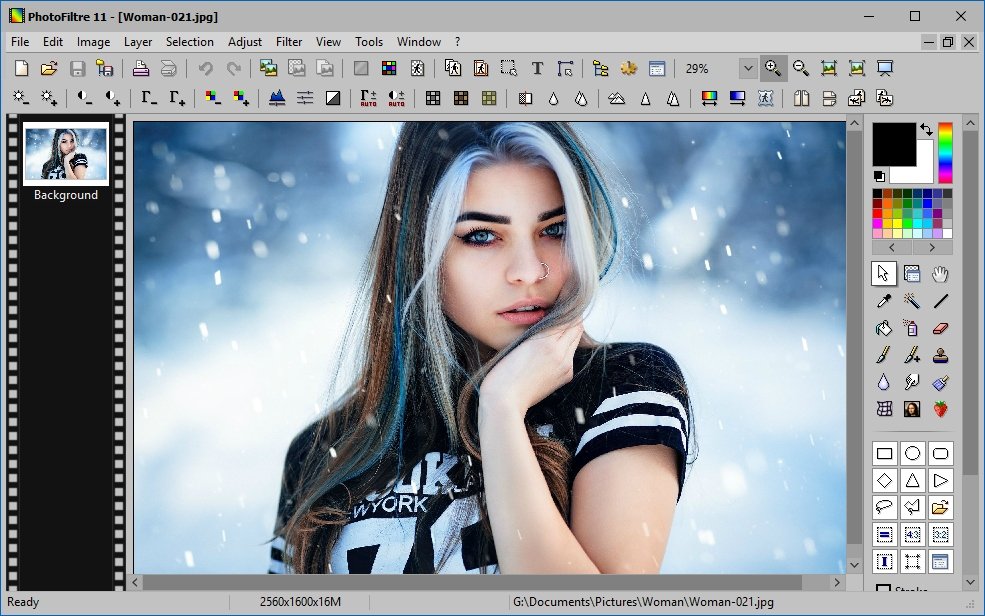
    4. Layer Support: For more advanced editing, Photo Filter Studio X supports layers, allowing users to apply filters and effects non-destructively. This feature enables users to stack multiple filters and make adjustments without altering the original image.
    5. Batch Processing: The batch processing feature allows users to apply filters and adjustments to multiple images simultaneously. This functionality is particularly useful for photographers and designers who need to edit large volumes of images quickly and efficiently.
    6. Intuitive Interface: With its user-friendly interface, Photo Filter Studio X makes it easy for users to navigate and access its features. The layout is designed for both beginners and experienced users, ensuring a smooth editing experience.
    7. High-Quality Output: The software maintains high image quality throughout the editing process, ensuring that your final results are sharp and professional. Whether you’re printing photos or sharing them online, Photo Filter Studio X delivers excellent output.

    Getting Started with Photo Filter Studio X

    To maximize your use of Photo Filter Studio X, follow these steps to get started:

    1. Installation and Setup: Download Photo Filter Studio X from the official website or an authorized distributor. Follow the installation instructions to set up the software on your computer. Once installed, open the program and familiarize yourself with the interface.
    2. Importing Images: Begin by importing your images into Photo Filter Studio X. Use the “Open” or “Import” function to load your photos into the software. You can work with various file formats, including JPEG, PNG, and TIFF.
    3. Exploring Filters and Effects: Browse through the available filters and effects to find those that suit your project. You can apply filters individually or combine them to achieve complex effects. Experiment with different settings to see how they impact your images.
    4. Customizing Filter Settings: Adjust the intensity and parameters of each filter to achieve the desired look. Use the sliders and options available in the settings panel to fine-tune the effect and ensure it complements your image.
    5. Using Presets: Take advantage of preset filters and styles to quickly apply popular looks or explore new creative possibilities. Presets can serve as a starting point for further customization.
    6. Applying Layers: For more sophisticated edits, use layers to apply filters non-destructively. This allows you to stack multiple filters, adjust their opacity, and make changes without affecting the original image.
    7. Batch Processing: If you need to edit multiple images, use the batch processing feature to apply filters and adjustments to all selected files simultaneously. This feature can save time and streamline your workflow.

    Tips and Techniques for Effective Use

    1. Experiment with Different Filters: Don’t be afraid to try out various filters and effects to see how they transform your images. Experimentation can lead to unique and creative results.
    2. Use Layer Masks: When working with layers, use layer masks to control where filters are applied. This technique allows you to selectively apply effects to specific areas of an image.
    3. Adjust Filter Intensity: Fine-tune the intensity of each filter to avoid over-processing your images. Subtle adjustments often yield more natural-looking results.
    4. Create Custom Presets: If you find a combination of filters and settings that you particularly like, save it as a custom preset. This will allow you to quickly apply the same effect to other images.
    5. Utilize Batch Processing Wisely: When using batch processing, ensure that the settings you apply work well across all images. Review your results to make sure they meet your quality standards.
    6. Regularly Update Software: Keep Photo Filter Studio X updated to benefit from the latest features and improvements. Check for updates regularly to ensure you have access to new tools and enhancements.

    Conclusion

    Photo Filter Studio X is a versatile and powerful tool for enhancing and transforming digital images. With its extensive range of filters, customizable adjustments, and user-friendly interface, it provides everything you need to achieve professional-quality results. Whether you’re a photographer looking to refine your images or a designer seeking creative effects, Photo Filter Studio X offers the tools and flexibility to bring your vision to life.

    By exploring the features and applying the tips and techniques outlined in this guide, you can unlock the full potential of Photo Filter Studio X and elevate your image editing skills. Embrace the creative possibilities, experiment with different filters, and enjoy the process of enhancing your photos with Photo Filter Studio X.
  • Unlocking the Power of Adobe Photoshop CS5

    Unlocking the Power of Adobe Photoshop CS5

    Unlocking the Power of Adobe Photoshop CS5
    Unlocking the Power of Adobe Photoshop CS5

    Unlocking the Power of Adobe Photoshop CS5: A Comprehensive Guide

    Introduction

    Unlocking the Power of Adobe Photoshop CS5 is a cornerstone in the realm of photo editing and graphic design. As a powerhouse in Adobe’s Creative Suite, Photoshop CS5 provides users with a robust set of tools to create, edit, and enhance digital images. Whether you’re a seasoned designer or a novice photographer, mastering Photoshop CS5 can elevate your creative projects to new heights. In this extensive guide, we’ll delve into the features, tips, and techniques that make Photoshop CS5 an essential tool for digital artistry and design.

    What is Adobe Photoshop CS5?

    Adobe Photoshop CS5, part of Adobe’s Creative Suite 5, is a comprehensive image editing software designed for professional photographers, designers, and artists. Released in April 2010, Photoshop CS5 introduced several groundbreaking features and improvements over its predecessors, making it a go-to choice for creative professionals seeking powerful image manipulation capabilities.

    Key Features of Adobe Photoshop CS5

    1. Content-Aware Fill: One of the standout features of Photoshop CS5 is Content-Aware Fill. This tool allows users to seamlessly remove unwanted objects from their images by intelligently filling the selected area with surrounding pixels. It significantly reduces the time and effort required for object removal and photo restoration.
    2. HDR Pro: High Dynamic Range (HDR) Pro in Photoshop CS5 enables users to create stunning HDR images by merging multiple exposures. The HDR Pro feature offers advanced controls for tone mapping, color adjustment, and detail enhancement, resulting in vibrant and dynamic images.
    3. Puppet Warp: Puppet Warp is a revolutionary tool that allows users to manipulate and adjust the position of specific areas of an image with precision. By placing a mesh over the image, users can easily distort and reshape elements, making it ideal for retouching and creative effects.
    4. Enhanced Brush Engine: Photoshop CS5 introduces an improved brush engine with customizable brushes and textures. Users can create unique brush dynamics, such as opacity, flow, and size, providing greater control over their painting and retouching techniques.
    5. Refine Edge: The Refine Edge tool enhances the selection process by providing advanced edge detection and smoothing capabilities. This feature is particularly useful for selecting complex subjects with fine details, such as hair or fur.
    6. Black and White Adjustment Layer: Photoshop CS5 includes a dedicated Black and White adjustment layer, allowing users to convert color images to black and white with precise control over tonal adjustments. This feature enables photographers to create dramatic monochrome images with ease.
    7. 3D Capabilities: Photoshop CS5 introduced basic 3D capabilities, allowing users to create and manipulate 3D objects and text. While not as advanced as later versions, these features provide a solid foundation for 3D design and modeling.

    Getting Started with Adobe Photoshop CS5

    To make the most of Photoshop CS5, follow these steps to get started:

    1. Installation and Setup: Obtain Adobe Photoshop CS5 through an authorized retailer or Adobe’s official website. Follow the installation instructions to set up the software on your computer. Once installed, open Photoshop CS5 and familiarize yourself with the workspace.
    2. Exploring the Interface: The Photoshop CS5 interface includes the toolbar, the image window, and various panels such as Layers, Adjustments, and Brushes. Understanding these components will help you navigate the software efficiently.
    3. Importing and Organizing Files: Begin by importing your images into Photoshop CS5. Use the File menu to open and organize your files. Photoshop CS5 supports various file formats, including JPEG, PNG, TIFF, and PSD.
    4. Basic Editing Techniques: Start with fundamental editing tasks such as cropping, resizing, and adjusting exposure. Use tools like the Crop Tool, the Levels Adjustment, and the Healing Brush to enhance your images.
    5. Exploring Advanced Features: Once you’re comfortable with basic editing, explore advanced features such as Content-Aware Fill, Puppet Warp, and HDR Pro. Experiment with these tools to enhance your creative projects and achieve professional-quality results.

    Tips and Techniques for Effective Use

    1. Master Keyboard Shortcuts: Learning Photoshop CS5 keyboard shortcuts can significantly speed up your workflow. Shortcuts for tools like the Brush Tool (B), the Eraser Tool (E), and the Marquee Tool (M) will make your editing process more efficient.
    2. Use Adjustment Layers: Adjustment layers provide a non-destructive way to apply edits to your images. Use layers like Levels, Curves, and Hue/Saturation to make adjustments without permanently altering your original image.
    3. Leverage Layer Styles: Layer Styles allow you to apply effects such as drop shadows, glows, and bevels to your layers. Experiment with different styles to add depth and dimension to your designs.
    4. Take Advantage of Smart Objects: Smart Objects enable non-destructive editing by preserving the original data of your layers. Use Smart Objects for transformations and filters to maintain image quality and flexibility.
    5. Utilize Custom Brushes and Textures: Photoshop CS5’s enhanced brush engine allows you to create and customize brushes and textures. Experiment with different brush settings to achieve unique artistic effects and enhance your digital artwork.
    6. Explore 3D Capabilities: While Photoshop CS5’s 3D features are basic compared to later versions, they provide a starting point for 3D design. Experiment with creating and manipulating 3D text and objects to expand your creative possibilities.

    Conclusion

    Adobe Photoshop CS5 remains a powerful tool for digital artists, photographers, and designers, despite being an older version in the Photoshop lineup. With its groundbreaking features like Content-Aware Fill, HDR Pro, and Puppet Warp, Photoshop CS5 offers a wealth of capabilities for image editing and creative design.

    By understanding and utilizing the features and techniques outlined in this guide, you can unlock the full potential of Photoshop CS5 and elevate your digital artistry. Whether you’re retouching photos, designing graphics, or exploring 3D capabilities, Photoshop CS5 provides the tools you need to achieve stunning results.

    Embrace the creative possibilities that Photoshop CS5 offers, and continue to explore and experiment with its powerful features to enhance your artistic projects and achieve professional-quality outcomes.


  • Mastering Paint Shop Pro X Your Ultimate Guide to Perfecting Your Digital Artistry

    Mastering Paint Shop Pro X Your Ultimate Guide to Perfecting Your Digital Artistry

    Mastering Paint Shop Pro X Your Ultimate Guide to Perfecting Your Digital Artistry

    Introduction

    In the vast realm of digital art and photo editing, Mastering Paint Shop Pro X Your Ultimate Guide to Perfecting Your Digital Artistry stands out as a versatile tool for both novice and professional artists. With its robust features and user-friendly interface, Paint Shop Pro X offers everything you need to bring your creative visions to life. In this comprehensive guide, we’ll explore the ins and outs of Paint Shop Pro X,

    What is Paint Shop Pro X?

    Paint Shop Pro X is an advanced photo editing software developed by Corel. Known for its intuitive interface and powerful tools, Paint Shop Pro X caters to a wide range of users—from hobbyists to professionals. It offers a plethora of features designed to streamline the editing process, including advanced photo correction, creative effects, and comprehensive design tools.

    Key Features of Paint Shop Pro X

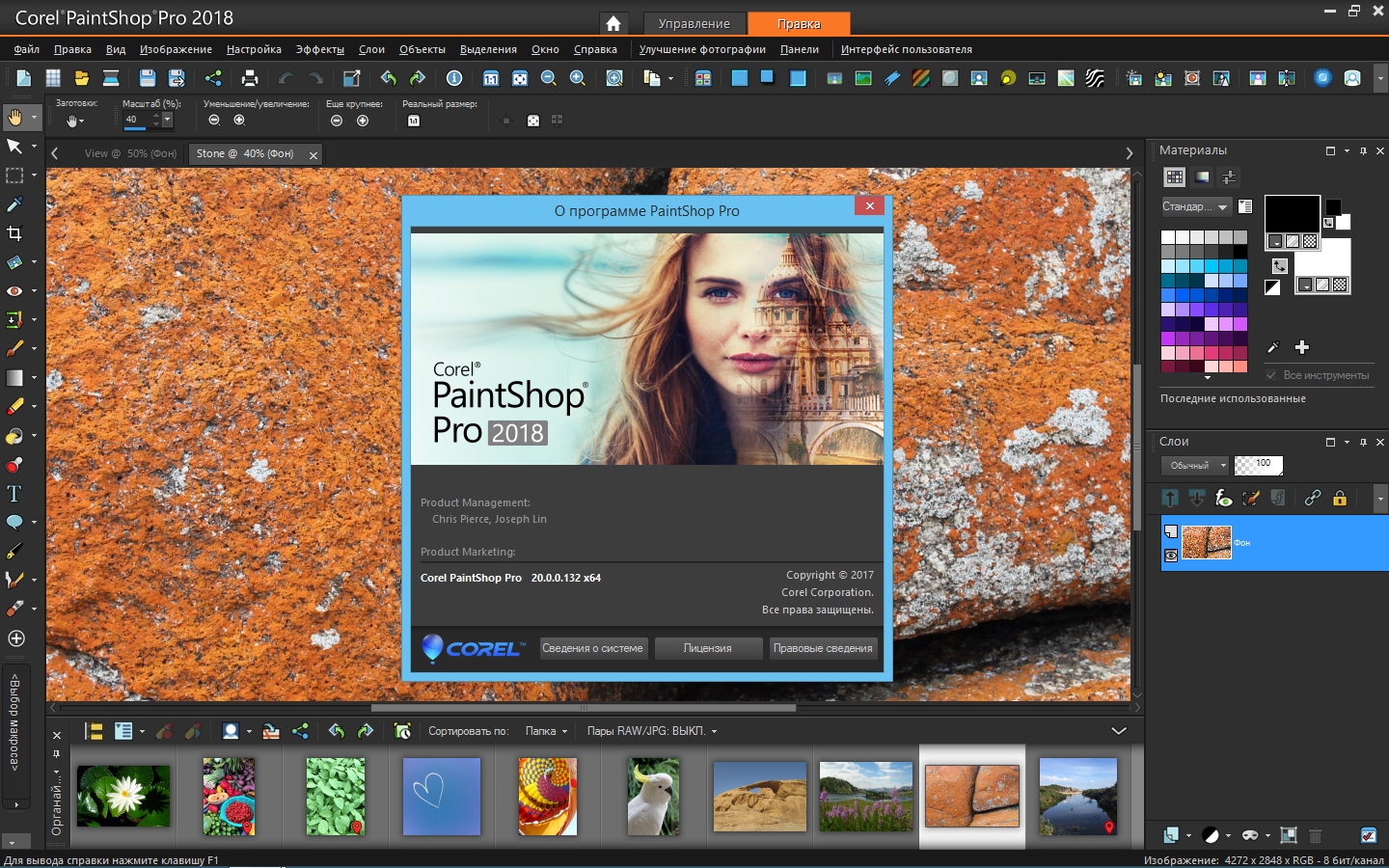
    1. Intuitive User Interface: Paint Shop Pro X features a user-friendly interface that simplifies complex editing tasks. Its well-organized toolbar and customizable workspace allow users to navigate and access tools with ease.
    2. Advanced Photo Editing Tools: The software includes a wide range of tools for photo enhancement, such as red-eye removal, color correction, and sharpening. With features like the Magic Fill and Smart Photo Fix, users can achieve professional-quality results quickly.
    3. Creative Effects and Filters: Paint Shop Pro X boasts an extensive collection of filters and effects, including artistic brushes, textures, and gradients. These tools enable users to add a unique touch to their images, whether they are creating digital artwork or enhancing photographs.
    4. Layer Management: The software supports multiple layers, allowing for intricate and detailed editing. Users can work with layers to isolate and modify specific parts of an image, making it easier to achieve precise results.
    5. Text and Typography Tools: Paint Shop Pro X offers robust text editing capabilities. Users can customize fonts, sizes, and styles, as well as apply text effects to enhance their designs.
    6. Batch Processing: For users dealing with multiple images, Paint Shop Pro X’s batch processing feature allows for the automation of repetitive tasks, such as resizing and renaming, saving valuable time and effort.
    7. Compatibility and Integration: Paint Shop Pro X supports various file formats, including JPEG, PNG, and TIFF. It also integrates seamlessly with other software, making it easy to incorporate into your existing workflow.

    Getting Started with Paint Shop Pro X

    To get the most out of Paint Shop Pro X, follow these steps to get started:

    1. Installation and Setup: Download Paint Shop Pro X from the official Corel website or an authorized retailer. Follow the installation prompts to set up the software on your computer. Once installed, open the program and familiarize yourself with the interface.
    2. Exploring the Interface: Take some time to explore the various tools and panels available in Paint Shop Pro X. The main workspace includes the toolbar, the image window, and the layers panel. Understanding these components will help you navigate the software more efficiently.
    3. Importing and Organizing Images: To begin editing, import your images into Paint Shop Pro X. Use the Organizer feature to manage and categorize your files, making it easier to locate and work with your images.
    4. Basic Editing Techniques: Start with basic editing tasks such as cropping, resizing, and adjusting exposure. Use the Adjustment tools to fine-tune color balance, brightness, and contrast.
    5. Exploring Advanced Features: Once you’re comfortable with the basics, dive into advanced features like layer masks, blending modes, and custom brushes. Experiment with different effects and filters to enhance your images.

    Tips and Tricks for Effective Use

    1. Utilize Keyboard Shortcuts: Save time by learning keyboard shortcuts for commonly used tools and commands. This will speed up your workflow and make the editing process more efficient.
    2. Customize Your Workspace: Tailor the interface to your preferences by customizing toolbars and panels. This allows you to access your favorite tools and features quickly.
    3. Experiment with Layer Styles: Layer styles can add depth and dimension to your designs. Experiment with different styles, such as drop shadows and glows, to create visually appealing effects.
    4. Use Presets for Consistency: Create and save your own presets for color corrections, effects, and text styles. This ensures consistency across your projects and saves time on repetitive tasks.
    5. Regularly Update Your Software: Keep Paint Shop Pro X up to date to benefit from the latest features and improvements. Check for updates regularly to ensure you have access to the latest tools and fixes.

    Conclusion

    Paint Shop Pro X is a powerful tool for digital artists and photographers looking to enhance their creative projects. With its intuitive interface, advanced editing features, and creative effects, it offers everything you need to achieve professional-quality results. By exploring the software’s capabilities and implementing the tips and techniques outlined in this guide, you can unlock the full potential of Paint Shop Pro X and take your digital artistry to new heights.

    Whether you’re a seasoned professional or just starting out, Paint Shop Pro X provides the tools and flexibility to bring your creative visions to life. Embrace the possibilities, experiment with different techniques, and enjoy the process of creating stunning digital artwork with Paint Shop Pro X.

    References: