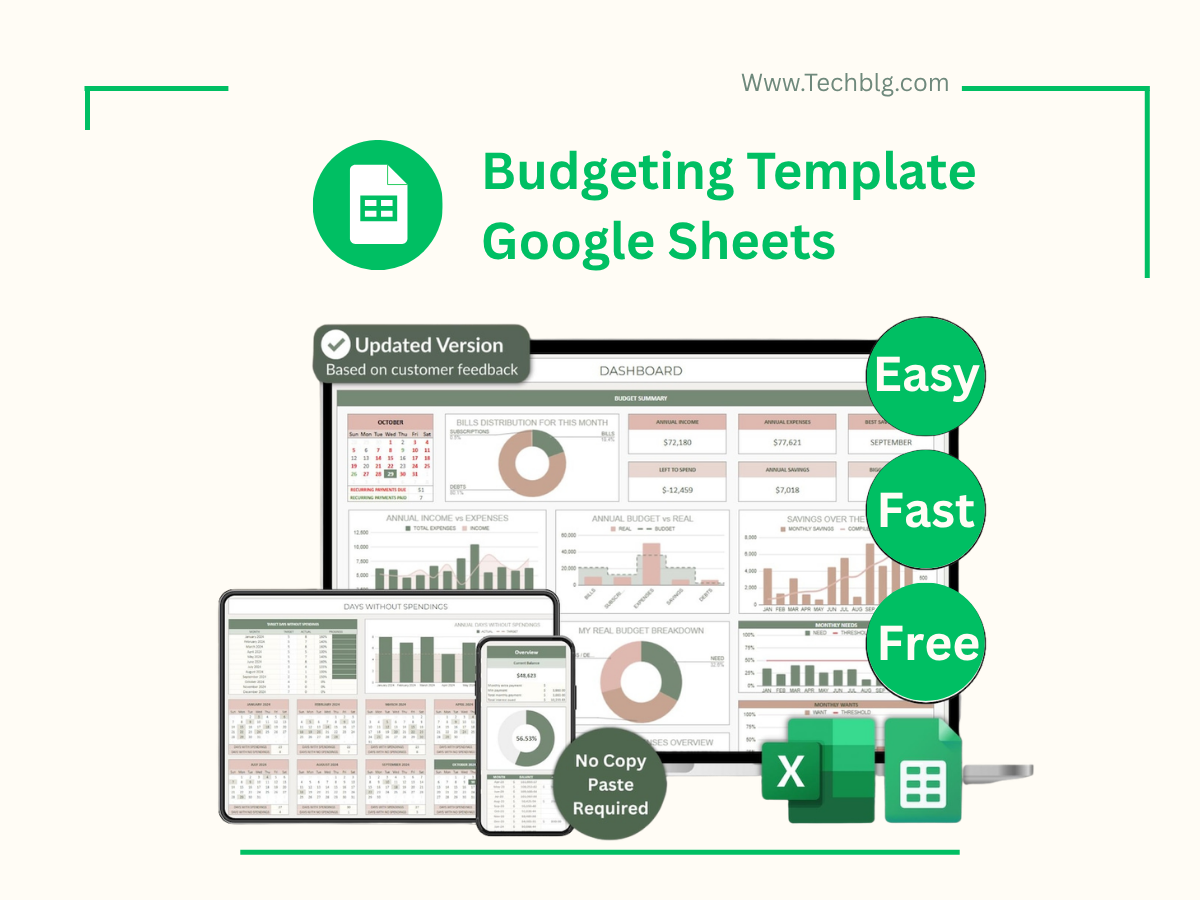
Do you know Budgeting Template Google Sheets ? So If you’ve ever tried to “start budgeting” and quit two weeks later, it’s usually not a willpower issue it’s a system issue.
Most budgets fail because they’re too complicated, too rigid, or too time-consuming to update.
A Google Sheets budgeting template fixes that. It’s flexible, easy to customize, and works for both personal budgets and small business budgets without locking you into an app subscription.
In this guide, you’ll get a clear budgeting template structure, step-by-step setup instructions, copy-paste categories, and examples you can follow so you can actually stick with it.
Quick Answer:
A good budgeting template in Google Sheets should track: income/revenue, fixed expenses, variable expenses, savings goals, and a monthly summary (what’s left, what’s overspent, and what to change next month).
What This Budgeting Template Tracks

A strong budget template isn’t just a list of expenses. It’s a simple decision tool: “Where is my money going, and what should I change next?”
Personal budgeting (monthly view)
For personal use, your sheet should cover:
- Income: paycheck, freelance income, side gigs
- Fixed expenses: rent/mortgage, utilities, insurance, subscriptions
- Variable expenses: groceries, gas, eating out, shopping
- Savings & goals: emergency fund, vacation, debt payoff
- Monthly summary: total income, total spend, savings rate, remaining cash
Small business budgeting (operating view)
For small businesses, the budgeting template should focus on:
- Revenue: monthly sales or expected revenue
- Cost of goods sold (COGS): if you sell products
- Operating expenses: software, marketing/ads, contractors, rent, fees
- One-time purchases: equipment, tools, upgrades
- Simple profit snapshot: revenue – expenses = profit (basic but useful)
If you’re a service business, don’t overcomplicate it. You can start with “Revenue + Expenses” and add cash flow later.
Download the Budgeting Template for Google Sheets

Here’s the workflow that works best:
- Create the template in Google Sheets (or download your version and “Make a copy”).
- Save your clean template as your “Master” file.
- Create a new tab or duplicate for each month.
Tip: If you’re sharing it with a partner or team member, set permissions to “Editor” and keep the structure consistent.
Download Budgeting Template for Google Sheets For Free
Budgeting Template for Google Sheets
How to Set Up the Template (Step-by-Step)

The goal is to set up your sheet once and then make weekly updates feel effortless.
Step 1 — Enter your income (personal) or revenue (business)
Start with a realistic baseline:
- If your income is variable, use a conservative monthly estimate.
- If your business revenue fluctuates, add a “expected vs actual” line (even if it’s simple).
Pro tip: It’s better to underestimate income and be pleasantly surprised than the opposite.
Step 2 — Add expense categories that match real life
Categories should reflect your actual spending patterns—not someone else’s perfect budget.
- Personal: keep it simple (10–15 categories is enough).
- Business: group expenses by function (marketing, software, contractors, fees).
Rule: If you’re not sure where something fits, add a “Misc” category temporarily, then review it at month-end.
Step 3 — Set monthly targets (budget caps)
In your template, each category should have:
- Budgeted amount
- Actual amount
- Difference (over/under)
For variable categories (like dining out or ads), caps are extremely helpful. Fixed categories (rent) don’t need much thought—just accuracy.
Step 4 — Track expenses quickly (the daily habit)
The fastest way to keep a budget alive is to make expense logging easy.
Pick one tracking habit:
- Daily (2 minutes): log expenses at the end of the day
- Weekly (15 minutes): every Friday or Sunday
Use:
- dropdown categories (faster, fewer errors)
- short notes (optional)
- consistent formatting
Step 5 — Review the month (what matters)
A budget improves when you treat it like feedback, not a punishment.
At the end of the month, look at:
- Top 3 overspent categories (why did it happen?)
- Total savings or cash left
- Expenses you forgot to plan for (annual fees, taxes, repairs)
- One change for next month (just one)
Best Category Lists (Copy-Paste)

Use these category lists as a starting point. Don’t aim for perfect—aim for usable.
Personal budget categories (starter list)
- Housing (rent/mortgage)
- Utilities
- Groceries
- Transportation (gas, rideshare, transit)
- Insurance
- Health & pharmacy
- Subscriptions (Netflix, tools, memberships)
- Dining out
- Shopping
- Debt payments
- Savings
- Miscellaneous
If you want to go more advanced later, you can split “Shopping” into “Clothing” and “Household,” but start simple.
Small business categories (starter list)
- Software subscriptions (CRM, accounting, tools)
- Marketing & ads
- Contractor / payroll
- Rent & utilities
- Office supplies
- Tools & equipment
- Payment processing fees
- Taxes & legal (basic tracking)
- Shipping (if applicable)
- Travel & meals (business-related)
- Miscellaneous
For a small business, the goal is: clarity + control, not accounting-grade complexity.
Budgeting Mistakes That Break the Sheet (And How to Fix Them)

Mistake 1: Too many categories
If you have 30+ categories, you’ll stop updating.
Fix: Merge categories until the sheet feels easy.
Mistake 2: Mixing personal and business money
This creates confusion and makes tax time painful.
Fix: Separate tabs or separate files. Ideally separate bank accounts too.
Mistake 3: Ignoring subscriptions
Subscriptions quietly destroy budgets.
Fix: Add a “Subscriptions” category and review it monthly.
Mistake 4: Not planning for irregular expenses
Annual insurance, quarterly taxes, car repairs… they happen.
Fix: Create a “Sinking Fund” category (small monthly amount).
Mistake 5: No monthly review
A budget without review is just data.
Fix: Add a 10-minute monthly review ritual.
How to Customize This Template (Advanced but Simple)

Once your basic template is working, upgrades can make it even more useful.
Add an “Expense Tracker” tab
Create a tab with columns like:
- Date
- Merchant
- Category (dropdown)
- Amount
- Notes (optional)
Then sum by category in your monthly budget tab.
Add “Cash Flow” for small business
Cash flow answers: “Will I have enough cash next month?”
Add:
- expected income dates
- big upcoming expenses
- net cash forecast
Even a simple cash flow view prevents surprise shortages.
Add automatic charts (spending by category)
Charts help you see patterns fast:
- Pie chart: spending distribution
- Bar chart: category overspend comparison
- Line chart: monthly trend (if you track multiple months)
Example: Filled-Out Budget (Personal + Small Business)
Examples help you model how this looks in real life.
Personal example (simple)
Income: $4,000
Fixed: Rent $1,500, utilities $200, insurance $150, subscriptions $50
Variable: Groceries $450, gas $160, dining out $180, shopping $120
Savings: $400
Result: You can quickly see if dining out or shopping is consistently eating your savings goal.
Small business example (service business)
Revenue: $8,500
Expenses:
- Ads: $600
- Software: $120
- Contractors: $1,800
- Fees: $250
- Tools: $150
Simple profit snapshot: Revenue – Expenses = a clear view of what’s left and where you can optimize.
FAQs – Budgeting Template Google Sheets
Is there a free budget template for Google Sheets?
Yes. Many templates are free, and the best ones are simple: income + categories + budget vs actual + monthly summary. The most important part is that it’s easy to update.
What’s the best monthly budget template in Google Sheets?
The best monthly template is one you’ll keep using. Look for: clear categories, budget vs actual tracking, and a monthly summary that highlights overspending and remaining cash.
How do I track expenses in Google Sheets automatically?
You can automate parts of tracking with bank exports (CSV) and cleanup rules, but many people start with manual tracking (daily/weekly). The key is consistent categories and a fast workflow.
How should a small business budget look?
For small businesses, a budget should focus on revenue, major expense buckets (ads, software, contractors, rent/fees), and a monthly profit snapshot. You can add cash flow as the business grows.
What categories should I include in a budget?
Use categories you actually spend money on. Keep it between 10–20 categories at first. Too many categories is the fastest way to abandon budgeting.
Conclusion – Budgeting Template Google Sheets
A budgeting template should make your money clearer, not your life harder. Start with the simple version: set income, choose realistic categories, cap variable spending, and review monthly. Once that becomes a habit, you can add advanced tabs like an expense tracker or cash flow.
If you want a clean starting point, use the Budgeting Template Google Sheets structure in this article—and customize it based on how you actually spend and operate.
If you’re building a complete “business system” inside Google Sheets, this budget template is just the starting point. You can connect it with an expense tracking workflow, a planner, and even full operations templates so your sheets become a lightweight operating system for your business.
For next steps, explore our guides on Inventory Management with Google Sheets Templates, Google Sheets Expense Tracker Templates, and the Ultimate Google Sheets Guide for Small Businesses. If you want to go further, we also cover Google Sheets project management template options, a Google Sheets templates Planner, and practical advice in Best Google Sheets tips and tricks for productivity.
And if you’re focused on financial control, don’t miss Budget Management with Google Sheets Templates and Streamline Your Business with Google Sheets Templates to build a faster, more consistent workflow.
Also You Can Watch This